
How to set different wallpapers on the iPhone Duo outer and inner displays
Folded, you see the outer display; unfolded, the inner one. Many people want each display to show its own scene: a book cover outside and the open pages inside. You don’t pick two pictures for this. You use one image that contains both scenes and frame it separately in each state.
How it works: one image, framed twice
The wallpaper editor accepts one image at a time. The outer and inner displays use the same file; they only differ in which part of it they show.
So you start with one wide, combined image: scene A for the outer display on one side and scene B for the inner display on the other. Move A into view while folded and B while unfolded, and save each adjustment.
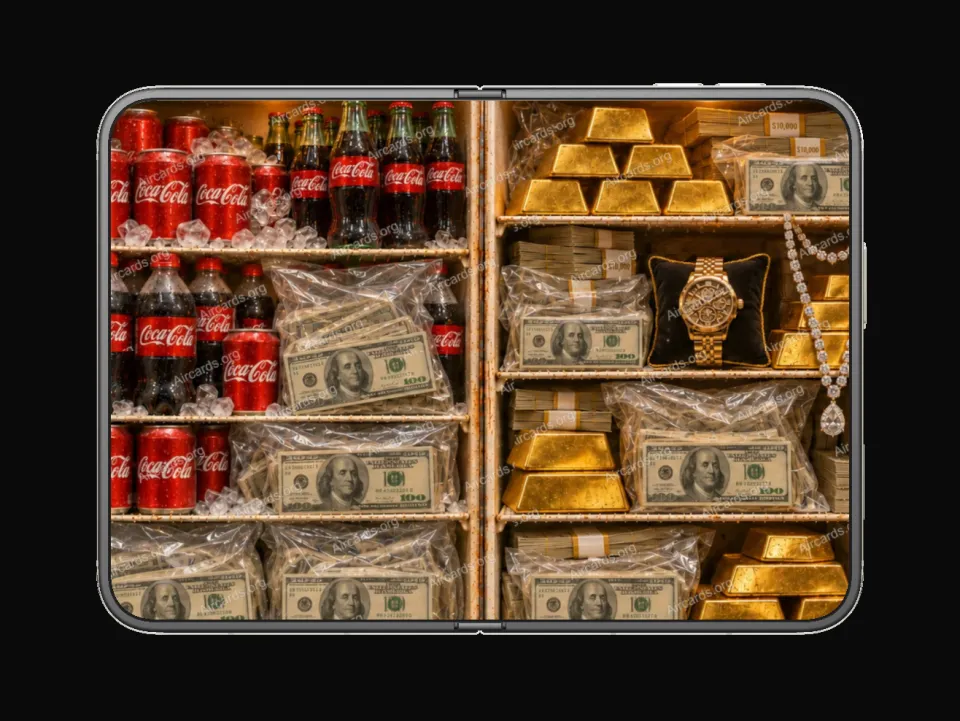
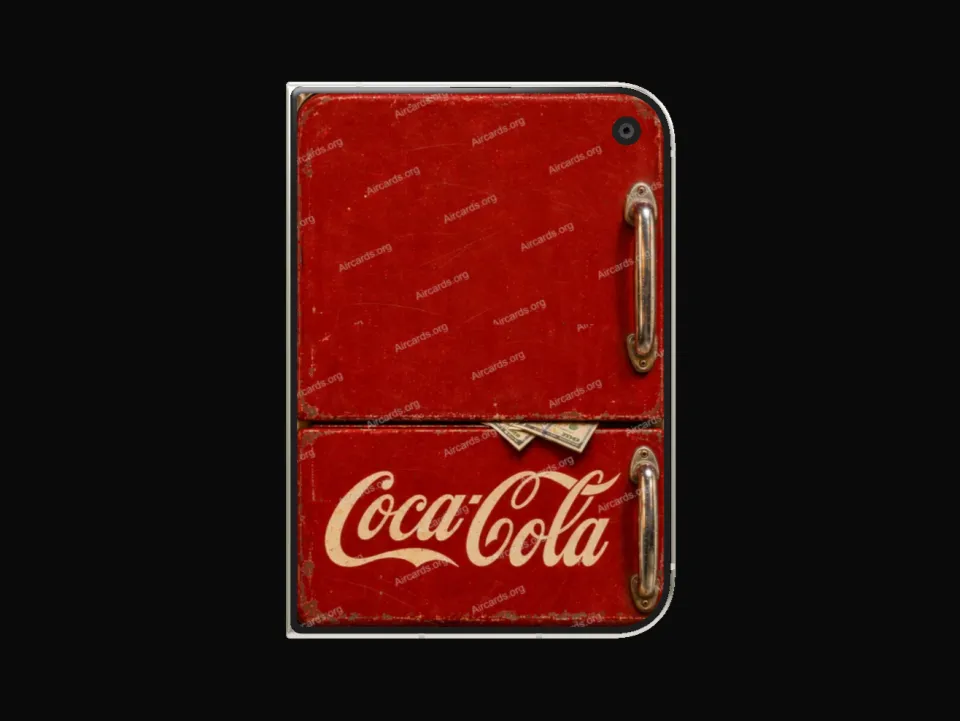
AirCards Duo wallpapers are made this way
Each iPhone Duo wallpaper on AirCards is designed by its creator for both displays. After you claim or buy it, you download one original image that already contains the outer and inner scenes.
The preview on the product page shows which part belongs to the outer display and which to the inner display. Use it as your guide while framing.

Plain wallpaper and Lock Screen
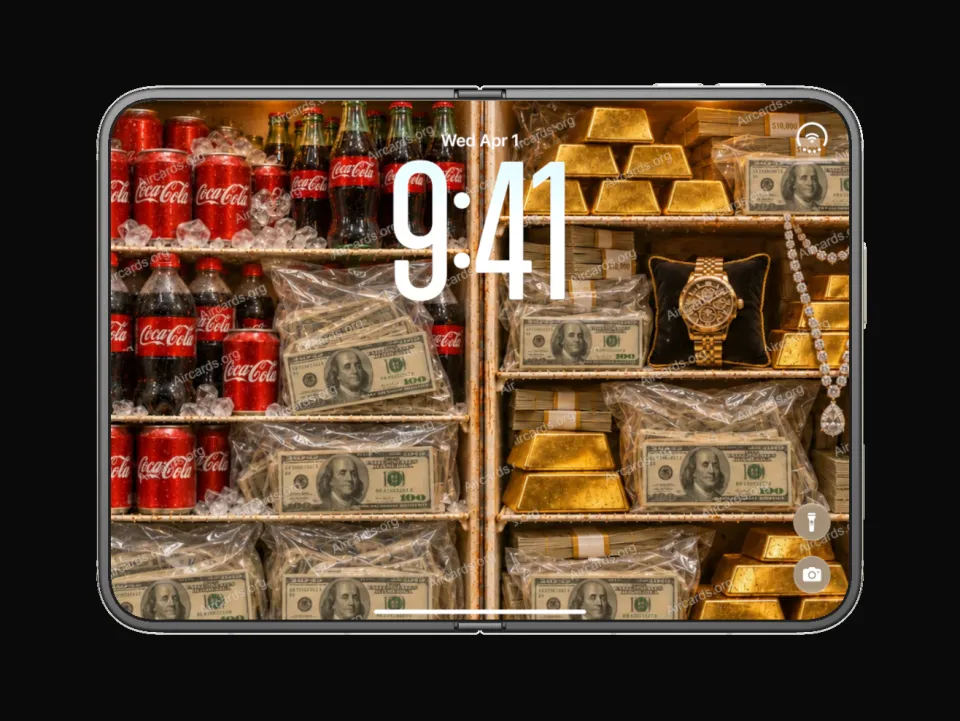
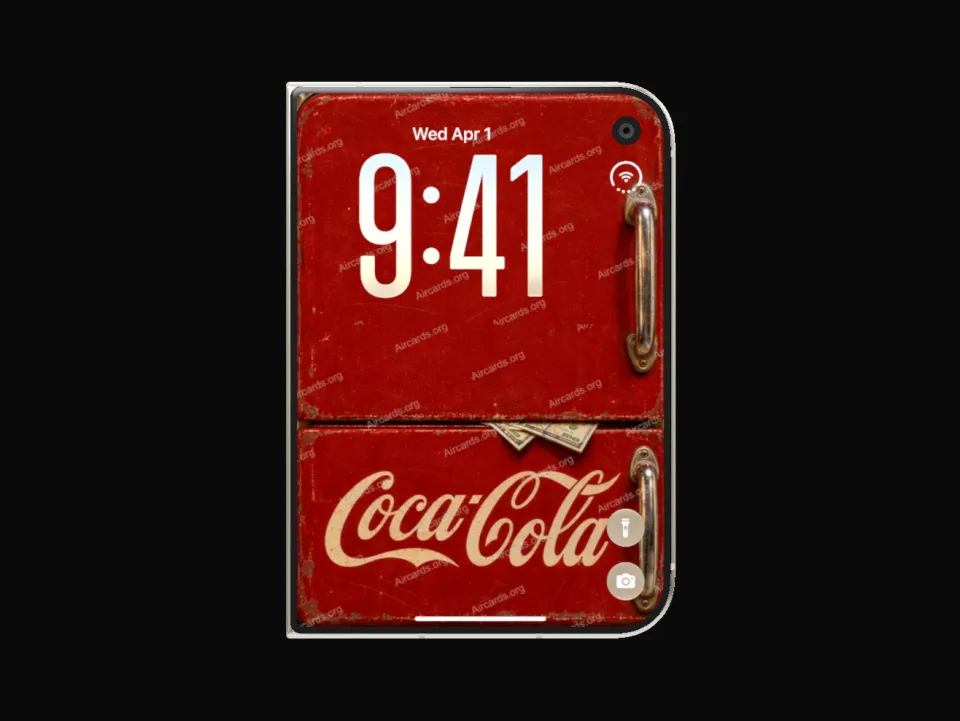
What it looks like on the phone
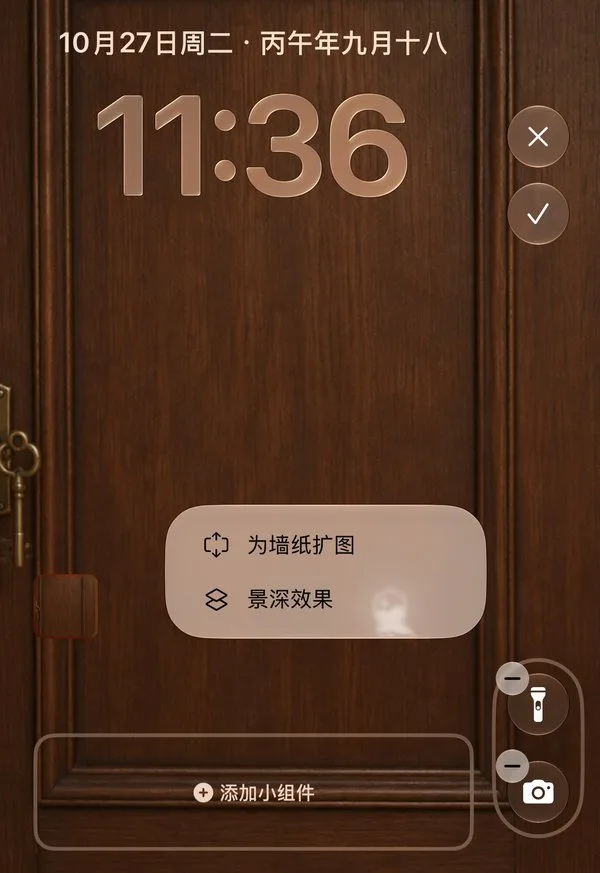
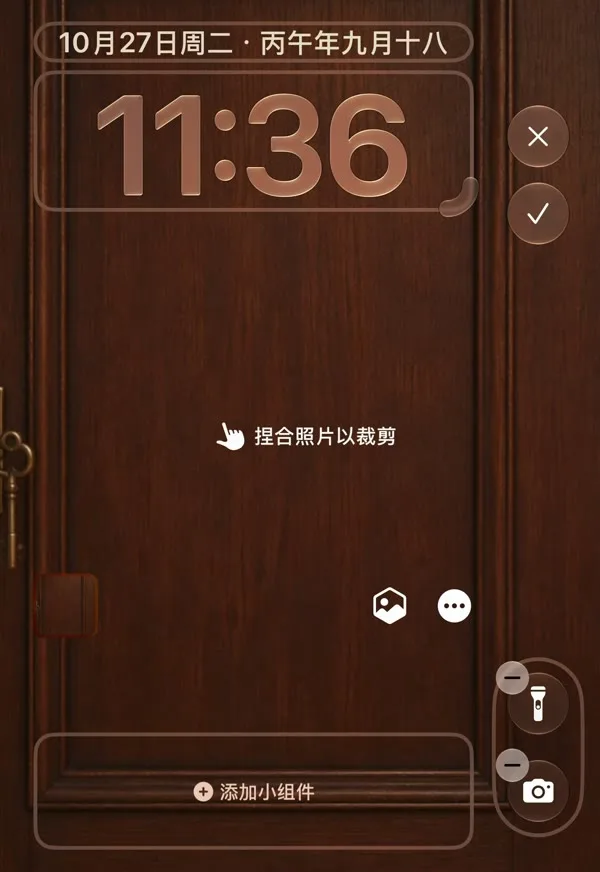

Step by step
Download the image and save it to Photos
Claim or buy the wallpaper on its AirCards page and download the original image. Open the PNG in Files and use Share → Save Image to add it to Photos. Use the downloaded file, not a screenshot of the preview.
Fold the phone and open the wallpaper editor
Fold your iPhone Duo, then touch and hold the Lock Screen on the outer display to edit it. Add or edit a wallpaper and choose this image from Photos. If the options menu offers a wallpaper extension setting, turn it off first, otherwise the image may not move all the way to the edge.
Frame the outer display
Pinch and drag the image until the outer display shows the part marked for it in the product preview, then save.
Unfold the phone and frame the inner display
Open the phone in the orientation you use most and edit the same wallpaper again. Don’t choose a new photo: only move and zoom this image until the inner display shows its part, then save. Fold and unfold once to check that both displays kept their framing.
Check the other orientation
With the phone open, rotate it and look again. Community reports say portrait and landscape may need their own framing. If you see the seam or the wrong scene, open the editor in that orientation, adjust and save.
Optional: the Home Screen
Some users report that the Home Screen wallpaper settings accept the same method. If your device shows these controls, repeat steps 3 and 4 there, then fold and unfold to check.
If it looks wrong
- The image won’t move far enough
- Go back to the options menu and make sure the wallpaper extension setting is off.
- You see the seam or the wrong scene
- Reopen the editor in the state where it looks wrong (folded or unfolded) and adjust the framing there.
- The inner display shows the whole image
- Some designs intentionally show the full image inside. To frame the inner display separately, repeat step 4. If your software version doesn’t keep a separate inner framing, the full-image look is the alternative.
- Adjusting one display changes the other
- Stop and check that you were editing in the right state and orientation. Behaviour can differ between software versions; a test image marked A and B makes the problem easy to spot.
- The result changes after rotating
- The other orientation needs its own check and framing, see step 5.
Try it with an iPhone Duo wallpaper
AirCards Duo wallpapers are composed for both displays, and the product page previews each one.
Browse iPhone Duo wallpapersSources
The method is compiled from the community posts below. Screenshots and recordings marked with a source belong to their creators and are shown with credit; the Wealth Refrigerator images, the recording and the diagram are AirCards material.
- u/philmnn1: original walkthrough for separate outer and inner wallpapers with one combined image (Reddit) (External source, opens in a new tab)
- u/SublimusDL: book cover and open pages demonstration with explanation (Reddit) (External source, opens in a new tab)
- “So this seems cool” thread: u/carguymt on framing and orientation (Reddit) (External source, opens in a new tab)